How I Set Up Kryven Legacy
Legacy is a roadmap, not a vault. This is how I built mine so my family could actually follow it, and how I'd build yours. Start with My System, then work through the sections. Each one ends with a single step you can do right now.
My System
Legacy maps what exists, where it is, and who to call, so your family isn't left guessing. It doesn't store the documents themselves, it points to them. Here is how I set mine up. First, the three-app split: Apple Passwords for logins, Kryven Vault for the documents, and Kryven Legacy for the roadmap on top.
Then the one decision that shapes everything: share by role, and give each person only what they need. Not everyone should see everything, so each person gets their own group.
- Your spouse or partner sees everything, the full picture
- Each child sees a simplified version: what exists and who to call
- Your estate attorney sees only legal documents and a summary of assets
- Your healthcare proxy sees only health directives
Start here: Don't try to finish it tonight. Run Guided Setup, fill in one entry, and share it with one person. The rest of this guide is how I filled mine in.
Guided Setup
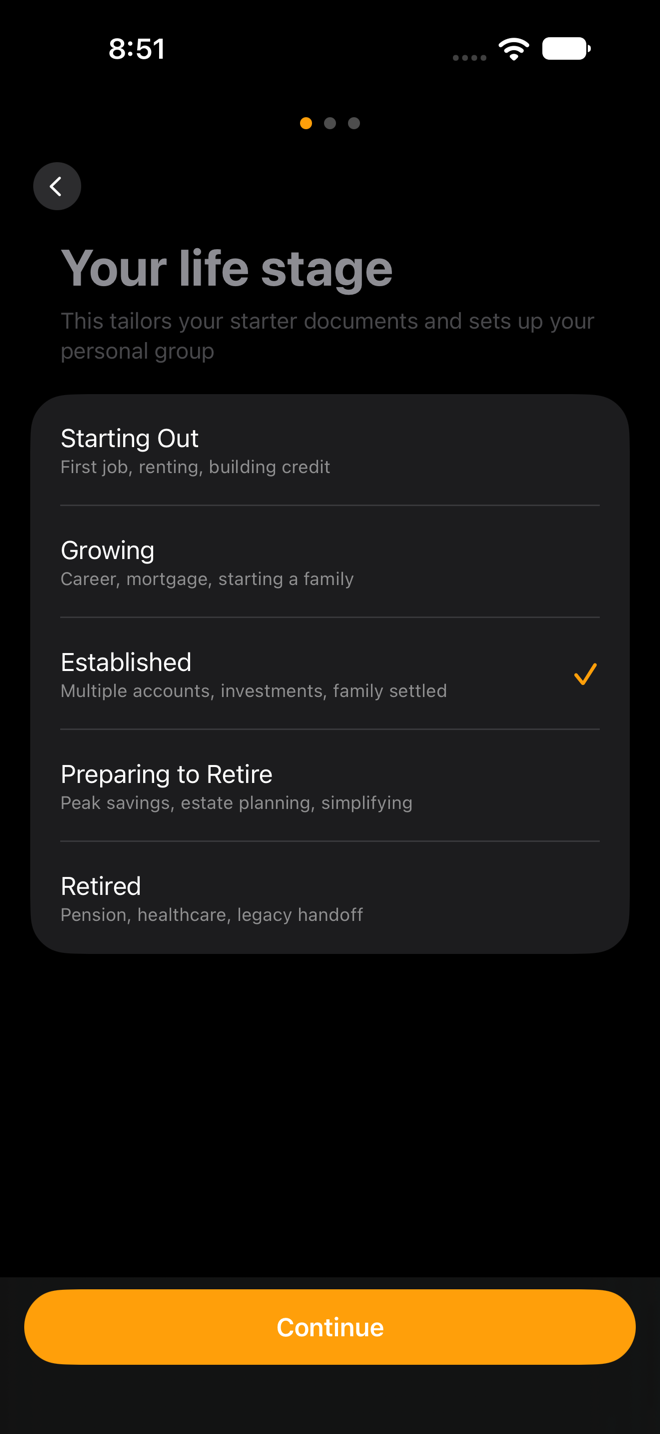
Everyone hits the same wall with legacy planning: the idea makes sense, but a blank app feels like homework you'll never finish. Guided Setup on iPhone gives you a starting point that fits your life. You pick a life stage, from Starting Out through Retired, and say whether you're the one organizing for your household. Legacy then suggests the entries people at that stage usually need, from a will and an advance directive to retirement accounts and employer benefits. You keep the ones that apply, and Legacy creates them in your groups, ready to fill in.
- Five life stages: Starting Out, Growing, Established, Preparing to Retire, and Retired
- Organizing for the household? Legacy sets up your personal group and a Family group
- Suggestions skip what you already have, so running it again never duplicates
- Beyond a name for your group, no personal details are asked for; suggestions come from your life stage
- Life changed? Change your stage later from Settings, Recommendations
Start here: Run Guided Setup, keep the suggestions that apply, then fill in one: where your will is, or your primary bank.
Legacy Readiness
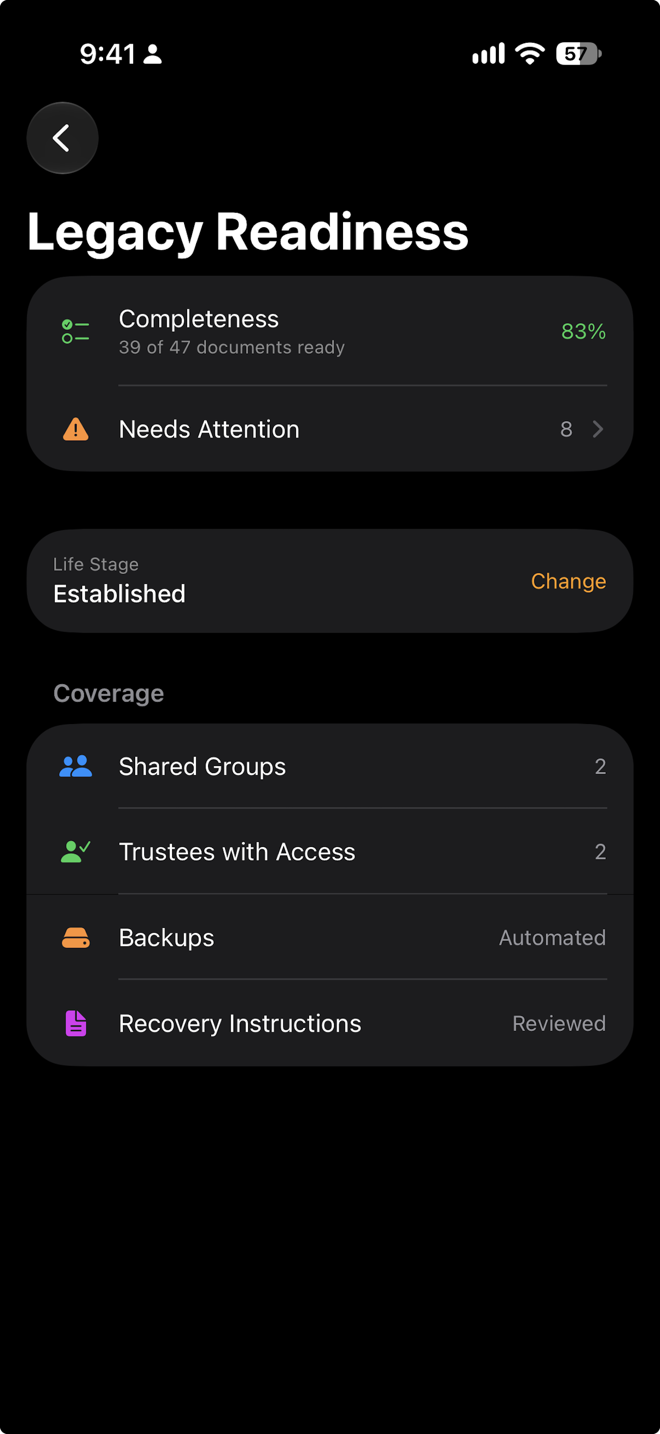
The roadmap only helps if the essentials are in it. Until they are, a Finish Setup banner with a progress ring sits on the home screen, tracking four categories: Legal Documents, Health Directives, Financial Assets, and Digital Accounts. Legacy Readiness in Settings goes one level deeper. It shows how many entries are complete, and Needs Attention lists each one that isn't, grouped by category, with the exact fields to fill in. Sharing, backups, and recovery instructions appear as coverage, so you can see them at a glance, but they never hold your score hostage. If you're doing this on your own, you can still reach complete.
- Completeness: how many entries have their essential fields filled
- Needs Attention: each incomplete entry, with fields like "Missing: Institution, Account Type"
- Coverage: shared groups, trustees, backups, and recovery instructions
- Long-press the home banner to hide it for now
Start here: Open Legacy Readiness, tap Needs Attention, and complete the first entry on the list.
Financial Assets
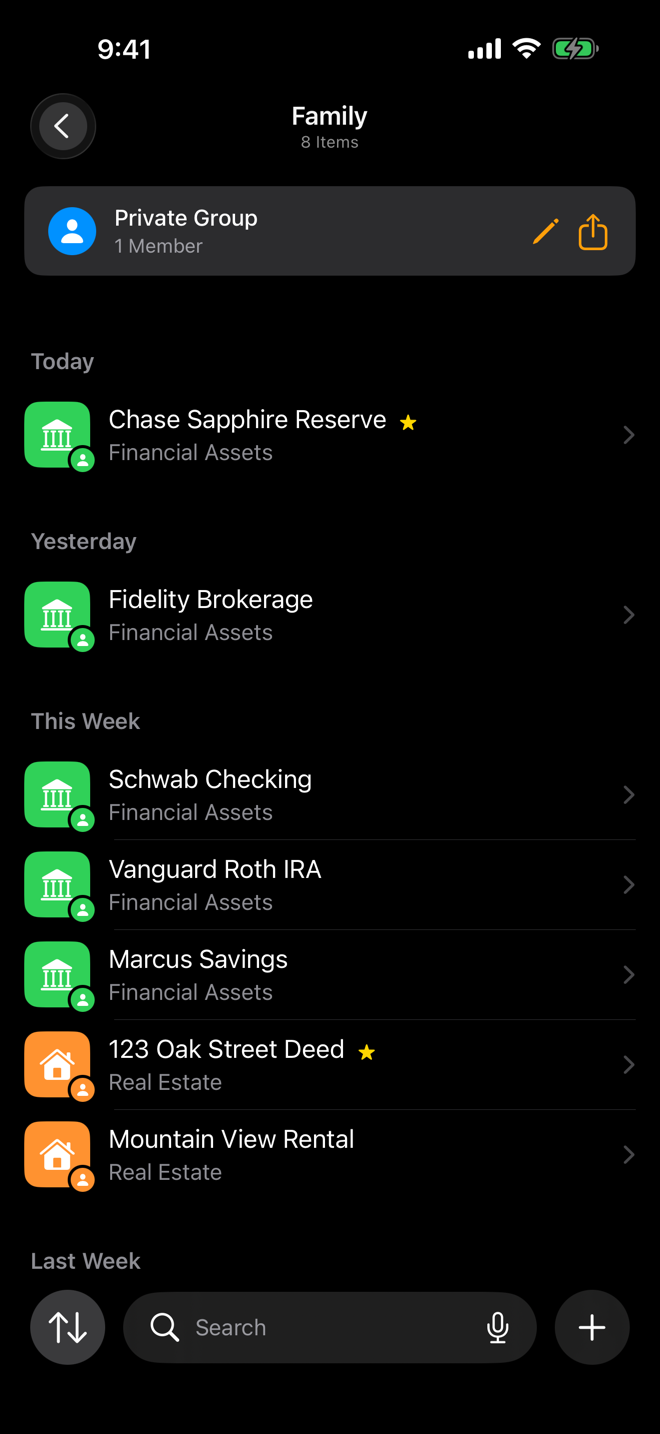
This is usually the biggest gap. Your spouse might know the joint checking account, but not the 401(k) from a job you left years ago or the brokerage you opened long ago. For each asset I note what it is, where it's held, who to contact, whether it has a named beneficiary, and anything my family would need to know. I don't store account numbers here, that's what Vault is for. Legacy is the map: it says this exists, here's who to call.
- List every account: checking, savings, retirement, brokerage, HSA
- Record the institution, the advisor's number, and beneficiary status
- Keep account numbers in Vault; Legacy just maps what exists and who to call
- Add a note for anything unusual, like an old 401(k) your family doesn't know about
Start here: List every account you have, then for each one ask: does my family know this exists? If not, it goes in Legacy.
Real Estate & Legal Documents
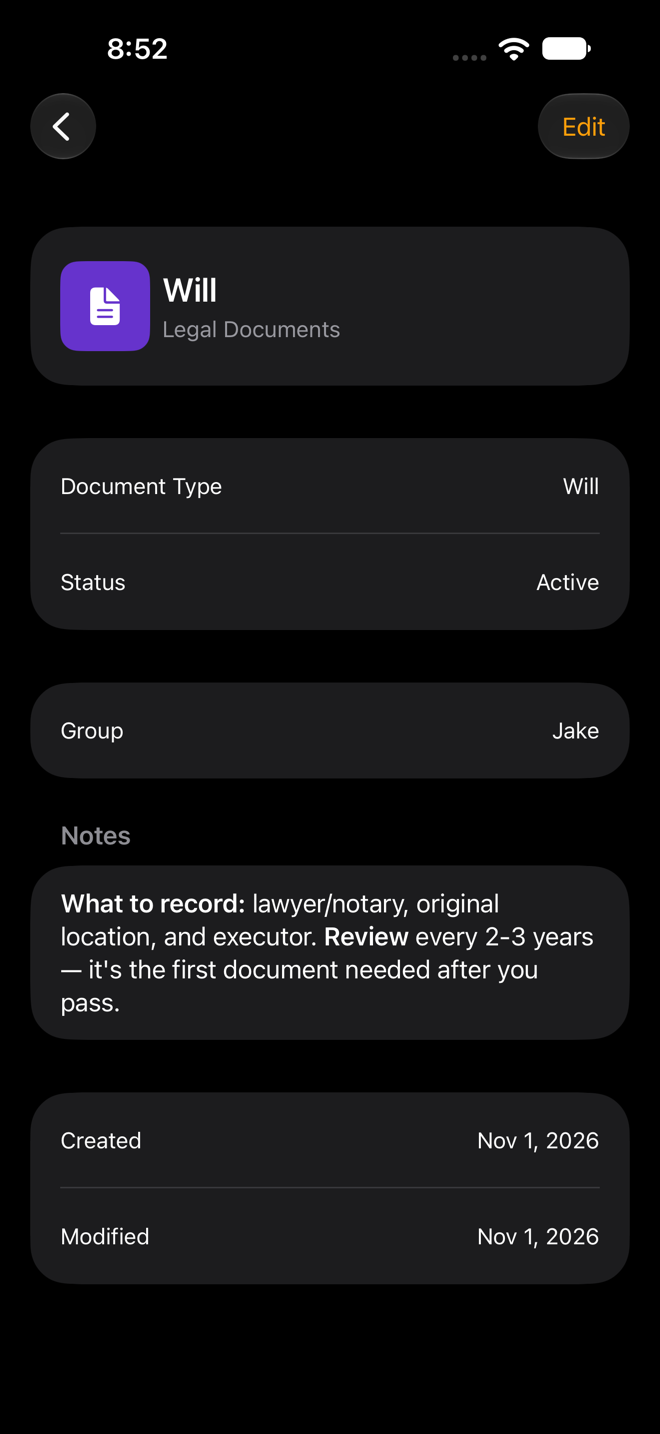
For each property I map the address, the mortgage holder and contact, where the deed is stored, property tax timing, and any HOA or property-manager notes. For legal documents I record where the will is stored, who the estate attorney is, who holds power of attorney, and any trust details. Legacy doesn't store the will itself, it tells your family a will exists, it's at this attorney, here's the number, here's what to ask for. That's the difference between a vault and a roadmap.
- Map each property's mortgage servicer, deed location, and tax details
- Record where the will is, the attorney's contact, and who holds power of attorney
- Note trusts and any property with a separate policy or manager
- Point to documents, and keep the documents themselves wherever they live
Start here: Add your primary residence and your will, or a note that you need to create one, with the attorney's contact info.
Digital Accounts & Health Directives
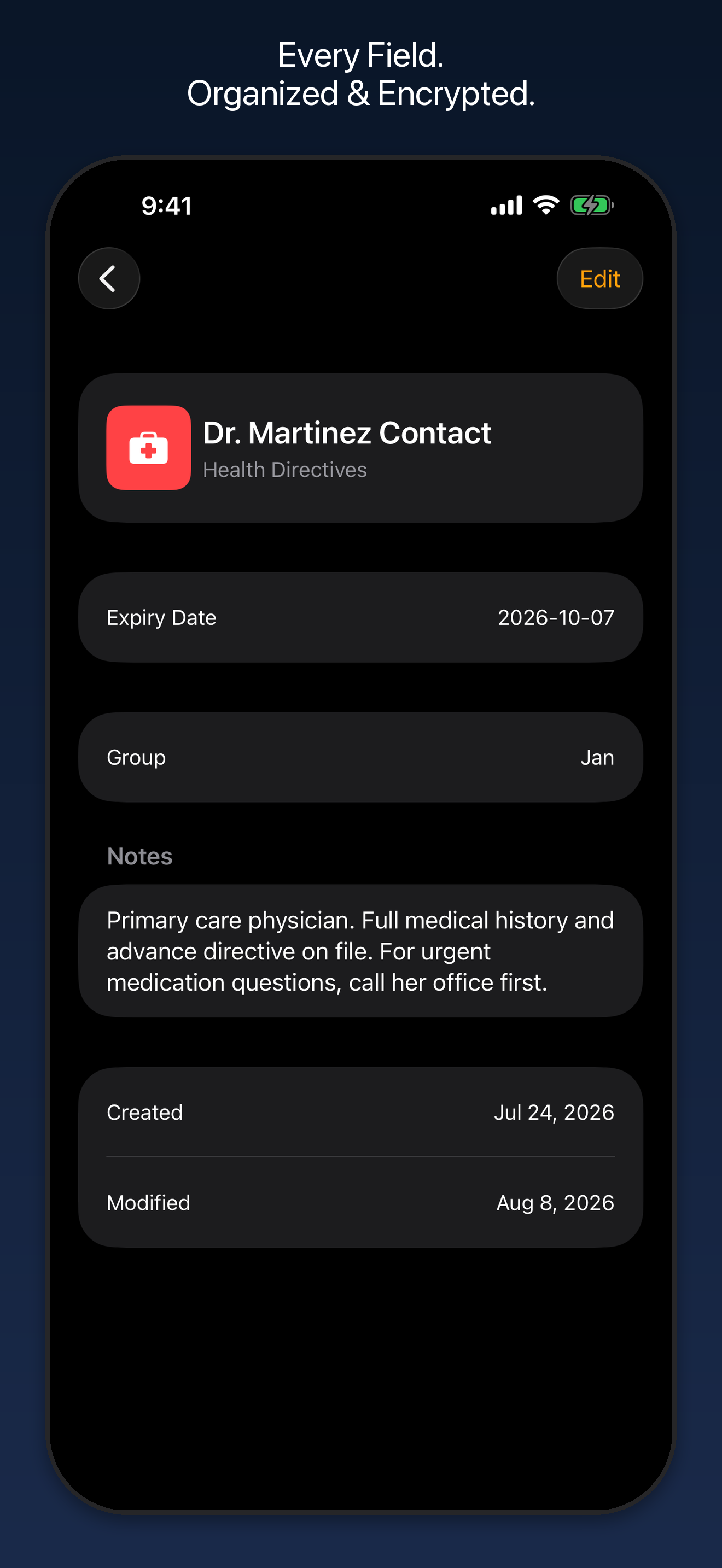
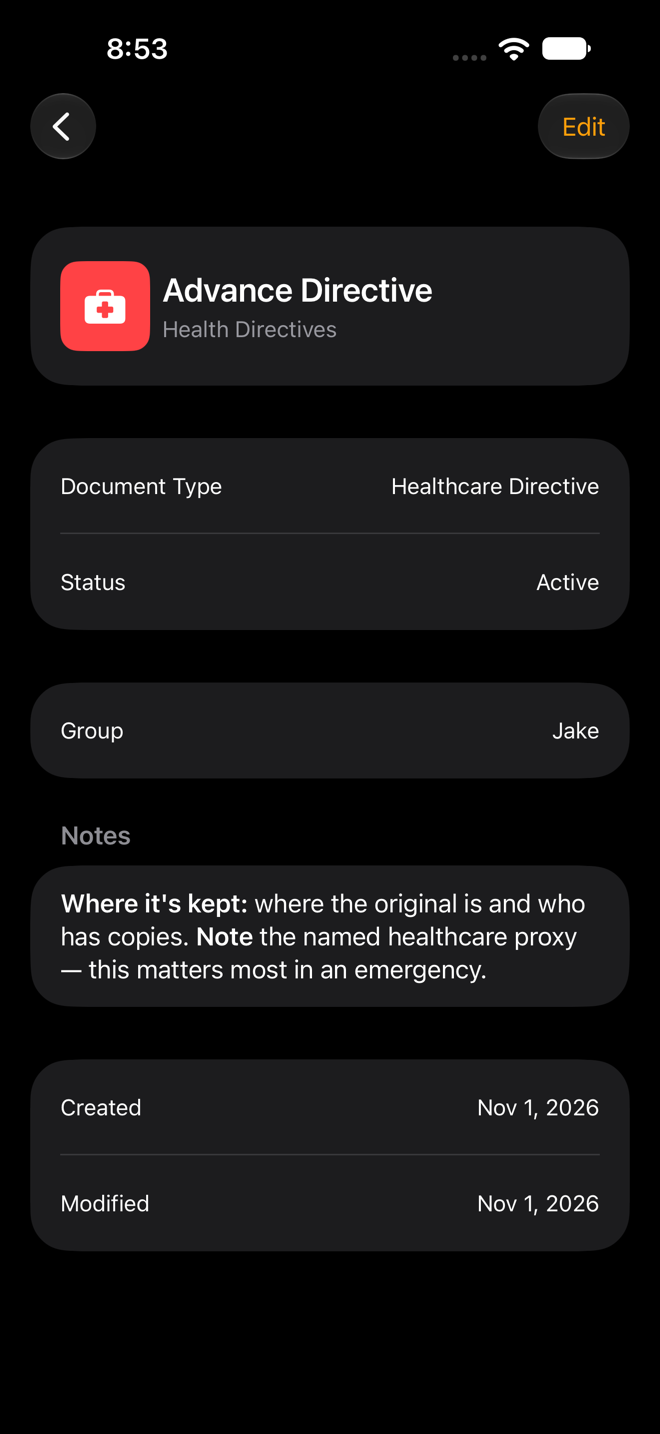
Digital Accounts isn't about passwords, Apple Passwords handles those. It's telling your family what accounts exist and what to do with them: which have a legacy contact or inactive-account policy, what to close or memorialize, and which subscriptions are still charging. Health Directives is the one nobody wants to fill out and the most important: where the advance directive is, who the healthcare proxy is, the primary doctor, key conditions or medications, and organ-donor status. If I'm incapacitated, my family finds the right paperwork in thirty seconds instead of thirty hours.
- Note which accounts have legacy contacts or inactive-account policies
- Flag subscriptions that are still charging so they can be cancelled
- Record where the advance directive is and who the healthcare proxy is
- Add the primary doctor, key conditions, and organ-donor status
Start here: Set up your Google or Apple legacy contacts, then add an entry so your family knows they exist. For health, note where your advance directive is.
Debts, Employer & Physical Assets
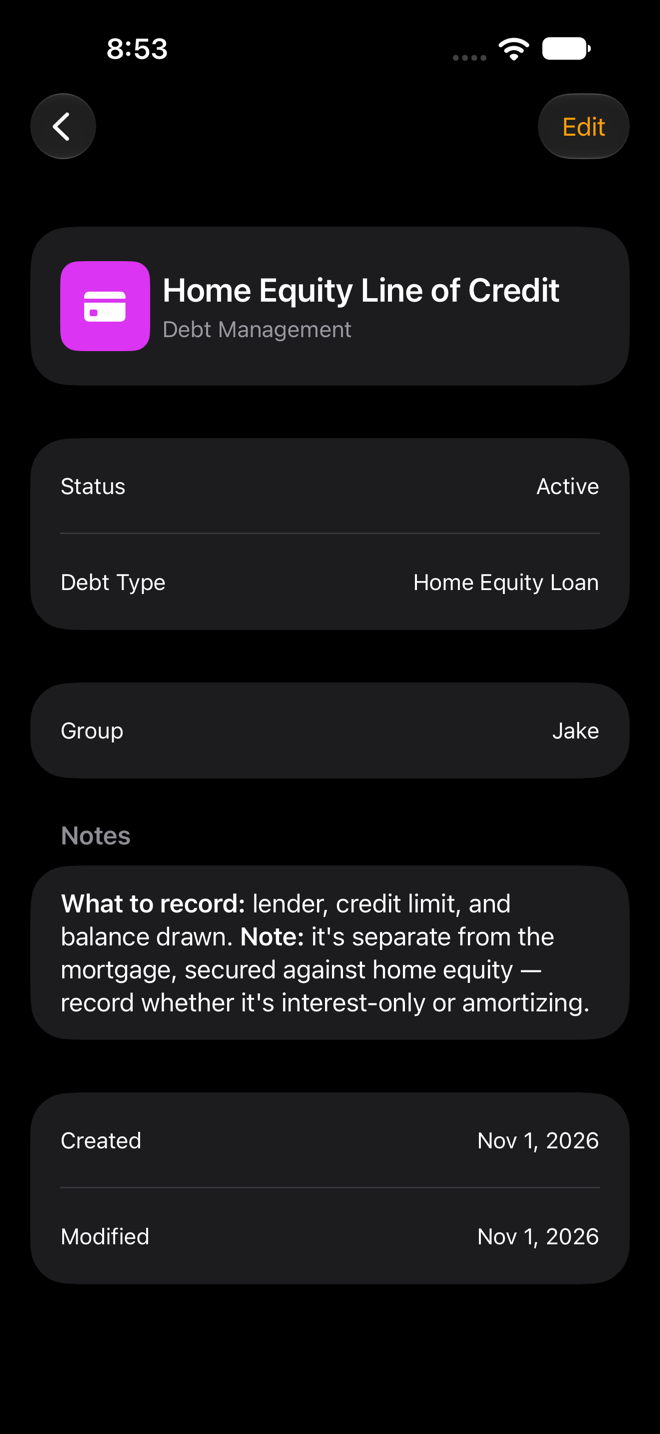
These three seem minor until you see how much confusion they prevent. For debts I list what's outstanding, the lender and contact, whether insurance or a co-signer covers it, and what autopays from which account, because a frozen account during estate settlement can push a loan delinquent. For employer connections I map the HR number, employer-provided life insurance, the 401(k) administrator, and any stock or options that need action. Physical assets covers the safe deposit box and where the key is, the home safe and combination, vehicle titles, and valuables with specific instructions.
- List debts, lenders, coverage, and what autopays from which account
- Record the employer's HR line, group life insurance, and plan administrator
- Map the safe deposit box, home safe, titles, and valuables with instructions
- Note anything that needs proactive action during estate settlement
Start here: List your outstanding debts and what autopays from which account, then add your employer's HR number.
Shared Groups & Recovery Instructions
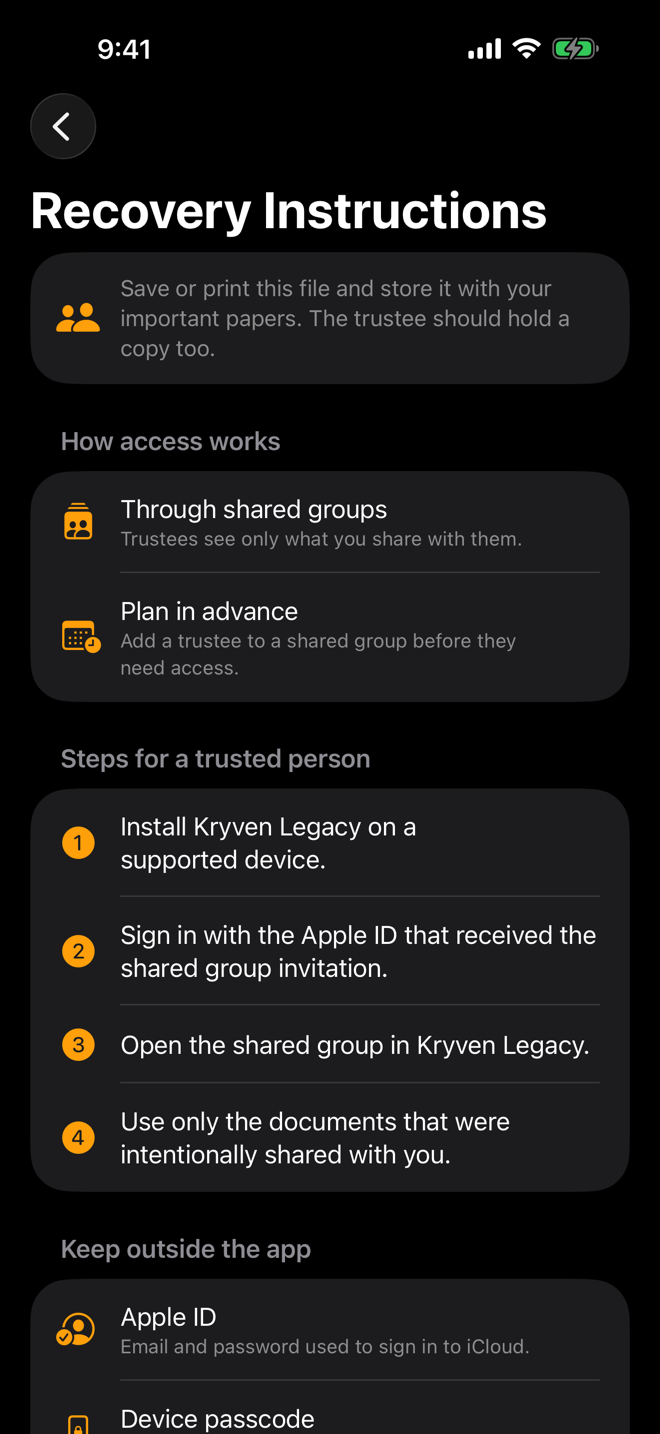
This is where My System comes together. I create a group per person, invite them via iCloud, and assign entries so each person sees only their group: my spouse sees everything, my children see a simplified version, my attorney sees only legal documents and an asset summary, my healthcare proxy sees only health directives. The piece that ties it together is Recovery Instructions: a one-page PDF you can save or print on iPhone or iPad that tells a trusted person what to install, how to sign in, and which groups they'll see. It names the groups and lists your entries by title, never their contents, and it reminds you to keep your Apple ID, device passcode, and backup password somewhere secure outside the app. I printed mine and put it with our wills.
- Create a group per person and share only the entries each one needs
- Invite each trustee from the group: tap Share, add them by email, phone number or contact, and send the link from Messages
- Give your spouse the full picture and others a scoped, simplified view
- Preview Recovery Instructions to see exactly what a trustee will read, then save or print it
- Keep your Apple ID, device passcode, and backup password recorded securely outside the app, and set up Apple's Legacy Contact
- Give entries a review date, and Legacy reminds you before it comes due so the roadmap stays current
Start here: Create one group for your spouse or partner, share your financial assets and legal documents, then ask them: did you know all of this existed?
Everyday Features
The small things that keep the roadmap easy to use once it is set up.
-
FavoritesStar the entries you open most and they show up in Favorites on the home screen. Favorites are yours alone, even on shared entries.
-
Search & Voice SearchSearch looks across every category. Tap the mic and say what you are looking for.
-
AttachmentsAdd up to five photos or PDFs to an entry, 5 MB each. Open a photo full screen to share it with AirDrop, Messages, or Mail.
-
Face ID & Auto-LockLegacy opens with Face ID, Touch ID, or your passcode. Choose when it locks: immediately, after 1, 5, or 15 minutes, or a custom time.
-
Automated BackupsPremiumLegacy saves to iCloud Drive daily, weekly, or monthly. Export a bundle when you want a portable copy that includes your encryption keys.
-
Review RemindersGive an entry a review date and Legacy alerts you when its reminder window opens and again on the day it comes due. Set the Reminder Time so it arrives when you can act on it.
-
Storage UsageSettings, Storage Usage shows how much space your entries and attachments take, and which are the largest. Premium adds Optimize Images, which resizes large saved photos so they take far less iCloud space.
-
Light & DarkLegacy follows your device's light or dark appearance automatically. Nothing to set.
On Your Mac
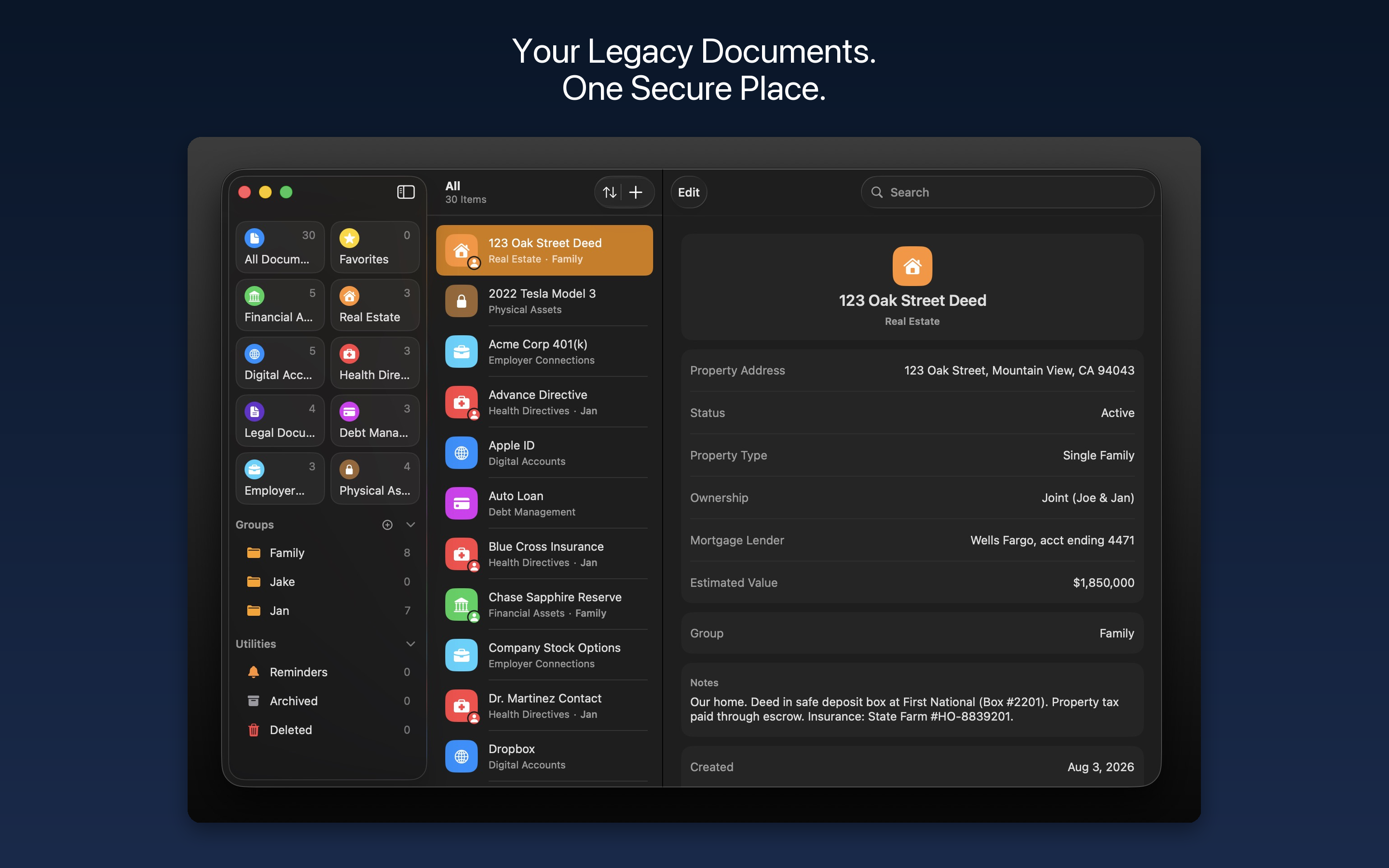
The same roadmap is on my Mac, synced through iCloud, and it's the easiest place to write the longer notes: what to ask the attorney, which accounts to close first. Categories and shared groups are on the left, entries in the middle, details on the right. Click any field to copy it.
- Everything you add on the Mac is on your iPhone and iPad, and in the groups you share
- Your life stage and Legacy Readiness are on iPhone and iPad; changes sync to your Mac
- Guided Setup and Legacy Readiness live on iPhone; the Recovery Instructions PDF is made on iPhone or iPad
- Legacy locks after your auto-lock time when you step away from the app
Start here: Open Legacy on your Mac and write the note your family would need first, the one you'd tell them in person if you could.
Why This Matters
None of the steps above are the point, they're the means. When a family loses someone, the grief is only half of it. The other half is a scavenger hunt: which bank held the accounts, was there a life insurance policy and who's the beneficiary, who's the attorney, what's still auto-charging, where's the will. Legacy doesn't save you time, it saves them time, at the worst moment of their lives. Your spouse opens one app and sees what exists, where it is, and who to call. Nobody pays a lawyer to find what you could have listed yourself. You're not handing them a pile of documents, you're handing them a calm, clear path. Ask yourself one question: if something happened this week, would the person you love most know exactly what to do?
Start Your Family's Roadmap
Start free with 10 entries and upgrade when you need more. For full plan details, see Pricing.